Email Triggers in AI Drive: How it works, and how we secure it
Turn incoming requests and documents into work for your custom agents. A complete guide to setup, forwarding, files, and results—with a closer look at the security decisions behind every run.
Email Triggers gives an AI Drive custom agent a dedicated email address. Send a request and its attachments, and the agent can work from its saved instructions. The result appears as a new unread conversation in AI Drive, ready to inspect and continue.
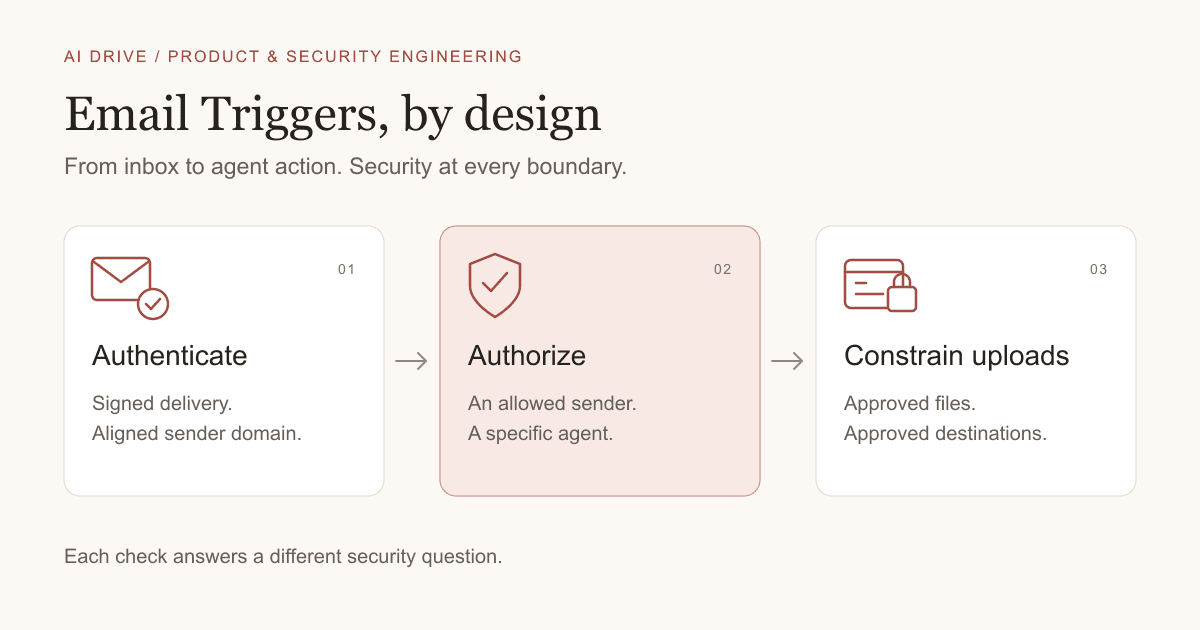
Behind that simple interaction is a consequential change in authority: content arriving from outside the product can initiate work inside an account. A forged sender, a replayed delivery, or an instruction hidden in an attachment could affect more than an inbox. Our security design therefore treats email intake as a series of separate decisions.
We will follow the complete workflow, from configuring an agent to reviewing its response, then examine the security design in detail: authentication, forwarding, replay protection, and file uploads when no person is present to approve them.
What happens when you send an email
A supplier sends an invoice. A client shares a brief. A teammate forwards a report that needs reviewing. Email Triggers connects that incoming work to an agent you have already configured, without downloading every attachment and rebuilding the request in a new chat.
Each enabled custom agent has its own email address. The destination selects the agent; its saved instructions describe the recurring job; your email body supplies the request for this run. Attach relevant documents when the task needs them. A text-only request can work too.
- Receive and check. AI Drive verifies the delivery, evaluates sender authentication and access, and checks whether the trigger can run.
- Save the source material. The message and attachments are stored in the owner's AI Drive, organized by agent and receipt time.
- Run the configured task. The selected email model processes the request using the saved agent instructions. Agent models can use their enabled capabilities and integrations.
- Review and continue. The response appears as a new unread conversation in AI Drive, where you can inspect the sources and ask follow-up questions.
A practical example: invoice intake
Give an invoice-review agent a specific recurring task:
Review the attached invoices. Extract the supplier, invoice number, date, due date, currency, and total into a table. Flag missing information and anything requiring human review. Do not invent absent values or approve payment.
Email the next invoice with “Please review this invoice and highlight anything I should check.” The saved instructions supply the format; the new message supplies the document and current request. Open the conversation to check the extracted figures against the invoice and ask about any discrepancies.
The same pattern supports project briefs, supplier proposals, and recurring reports. Use separate agents for jobs with different instructions, senders, or capabilities. Email initiates the work; the completed analysis lives in AI Drive. The trigger does not automatically email the analysis back to the sender.
Set up an agent for email
Email Triggers is available on Business and Enterprise plans. Start in the custom agent editor and configure one familiar task before expanding to a broader intake workflow.
- Name the agent and write its instructions. Describe the task, expected output, and what should be left for human review. Choose the documents and connectors it needs.
- Enable Email Trigger. Review the email-agent security notice and generate the dedicated address. You can edit the address prefix; save the change and copy the full address shown in the editor.
- Select the Email Model. Choose from the models configured for the agent. If that selector has no choices, select models for the agent first. Pick an agent-capable model when the workflow needs to take actions.
- Configure sender access. The owner is included automatically. Add trusted addresses in Email Access Control, enable team access when appropriate, and separately opt in to automatic forwarding if you need it.
- Set unattended upload permissions only when needed. Choose the allowed files or folders and destination websites. A folder permission includes its subfolders. These settings are saved with the agent and are also used for its scheduled runs. On Enterprise, confirm that your organization allows browser access and file uploads for the agent owner.
- Review the cost center and save. Where your account uses cost centers, select the appropriate available one for the trigger. Save the agent and confirm its current address, model, and permissions.
- Send a small test request. Use an authorized address, put the task in the body, and attach a representative document. Review the resulting conversation before relying on the workflow for recurring work.
Connect an automatic forwarding rule
Enable Auto-Forwarded Email Access, authorize the forwarding inbox, and complete your mail provider's forwarding setup. Some providers first send a confirmation email. Add that provider's confirmation-sender address to the allowed list if required; after the message passes authentication, its confirmation link can appear in the agent conversation for you to approve.
Then create a narrow rule in your mail service—for example, reports from a particular supplier with a specific subject. The AI Drive toggle does not create that rule or complete the provider's confirmation for you. Forwarding still has to satisfy the authentication and access rules explained below.
Start with what an email could cause
We assume an attacker can learn an agent's address, choose a display name, compose arbitrary message headers, and put instructions in the body or attachments. We also account for duplicated deliveries, forwarding services that rewrite the SMTP envelope, and failures in the systems used to check permission.
The assets at stake are the owner's documents, integrations, processing capacity, and any files an agent might disclose to another website. The recipient address routes a message to an agent; knowing that address does not grant access to run it.
Our design separates the source of the delivery, evidence about the sender's domain, permission to invoke this particular agent, and permission for an approval-gated action. None of those checks can establish that every sentence in an authenticated message is safe.
Verify the delivery and resist replay
Incoming messages reach AI Drive through an authenticated delivery endpoint. We verify each delivery's HMAC-SHA256 signature over the timestamp and token with a signing key, using a constant-time comparison. Missing authentication fields, an invalid signature, or a timestamp outside the accepted window prevents the request from entering the email-processing flow.
A valid signature alone does not make repeated delivery harmless. Before processing the message payload, we atomically claim the signed token in persistent storage. The record is keyed by a SHA-256 digest; the replay store does not retain the raw token.
Concurrent requests cannot independently acquire the same active claim. An in-progress claim produces a retry response; a completed claim is acknowledged as a duplicate. Expiring leases allow recovery from abandoned processing, while lease ownership is checked before a request can complete or release a claim. Expiry timestamps and cleanup bound the lifetime of replay records.
This authenticates the webhook delivery mechanism. The signature covers the timestamp and token, not a digest of the complete email body. It also says nothing about whether the person named in the message may run an agent. Those are separate trust decisions.
Authenticate the domain behind the From address
A familiar display name is not an identity check. We extract the address from the message's From header and evaluate authentication against that domain. A missing From address is rejected, and conflicting From headers naming different domains are blocked instead of choosing whichever identity would pass.
An email needs at least one passing, aligned SPF or DKIM result. SPF evaluates the sending infrastructure for the SMTP envelope domain. DKIM verifies a signature associated with a signing domain. Alignment connects that evidence to the domain shown in From. A passing result for an unrelated domain cannot authenticate the claimed sender.
Only the receiving system can supply trusted verdicts
An attacker can write an Authentication-Results header too. We accept header verdicts only when their provenance matches our trusted receiving system. Sender-supplied or ambiguous metadata does not establish identity, and convenient summary fields are not a substitute for checking the underlying evidence.
Using receiver-supplied verdicts depends on the receiving system correctly stamping inbound messages. That dependency remains part of our trust model. Independent verification is available when header evidence cannot be trusted; successful authentication still requires evidence aligned with the claimed sender domain.
Preserve the evidence behind each pass
Forwarded mail can contain several SPF results and several DKIM signatures. Our parser preserves repeated sections rather than collapsing them into a single value. It respects quoted strings and comments, and keeps a passing verdict tied to the domain it actually verified. A later failure cannot simply overwrite an earlier usable result, and a pass for one domain cannot be borrowed by another.
A DKIM-Signature header that merely claims a trusted signing domain proves nothing. Likewise, a generic “DKIM passed” boolean without the verified signing domain cannot establish alignment. For SPF, a passing HELO identity does not substitute for the envelope-sender identity used by this flow.
If From is [email protected], a verified signing domain of example.com or mail.example.com can align. A domain such as example.com.attacker.net or anotherexample.com cannot.
Our alignment rule accepts an exact domain or an authenticated subdomain separated by a dot boundary. It is intentionally one-directional: a parent domain signing for a subdomain From address, or two sibling subdomains, does not qualify. This is a conservative application rule, not a complete implementation of public-suffix-based DMARC relaxed alignment. Some legitimate sending arrangements may therefore be rejected.
SPF and DKIM provide domain-level evidence. They do not independently prove which human or individual mailbox within a domain authored the message. The security of the sending provider and account remains part of the trust model.
Re-verify when header evidence is insufficient
If trusted headers do not establish an aligned pass, we attempt verification using the raw email. DKIM signatures are checked cryptographically, and alignment is based on a signature that actually verifies. Multiple signatures are considered so that a forwarding service's signature does not hide a valid original one.
SPF verification uses the SMTP envelope identity recorded by the receiver and an eligible public connecting IP. It does not take the identity from a sender-authored Return-Path, or search arbitrary earlier Received headers for an IP that would produce a favorable result. When consulting Received headers, only the topmost receiver header is considered.
Retrieving the raw message introduces its own network boundary. The storage fetch validates the URL scheme and an explicit allowlist of approved email-storage hosts, refuses redirects, uses a timeout, and accepts only successful responses. That constrains server-side request forgery: an email must not turn verification into a request to an arbitrary internal or external service.
DKIM verification also caps signature count and the budget for starting additional checks. This limits work driven by sender-controlled signatures; an individual in-flight DNS lookup can still extend the elapsed time. Missing usable evidence and authentication exceptions do not become permission to proceed.
Check access to this agent, including forwards
After authentication, we apply the agent's Email Access Control. The owner's account email is allowed. Other senders need an explicit address entry or qualifying team membership when team access is enabled. With no access configuration, a non-owner is denied. If no authorization route establishes access, the request is denied; a failed check does not itself grant permission.
These rules apply to the particular agent receiving the message. Authentication does not bypass them, and the owner's access rule does not bypass the earlier email-authentication checks.
Forwarding introduces a second identity
Consider a supplier report automatically forwarded by your work inbox. From still names the supplier, while the SMTP envelope may name your forwarding address. The original author and the account routing the message to AI Drive are different identities.
Auto-Forwarded Email Access is an explicit opt-in for using the forwarding identity as an additional authorization route. The message must still pass authentication aligned with its original From domain. Separately, a forwarding identity is available only when SPF passes for the actual envelope domain. After normalizing supported forwarding tags, that address must qualify as the owner, an allowed sender, or an eligible team member.
A “Forwarded by” line in the body grants nothing. Neither does an unrelated SPF pass or an unapproved forwarding address. The opt-in authorizes a route through a trusted inbox; it does not certify every message that inbox might receive. Narrow forwarding rules are part of keeping that route useful and controlled.
Keep message content separate from permission
Accepted messages supply task input. The saved agent configuration supplies its instructions, selected model, and configured connectors. The incoming email does not become the source of standing upload permissions, even if its body contains text that looks like a grant.
The email body and attachments are saved in the owner's AI Drive, organized by agent and receipt time. Attachment names are sanitized, duplicate names within the attachment batch are disambiguated, and paths are validated before upload. This protects path handling; it is not a claim that every attachment is malware-free.
The request keeps the subject, message, and links to stored attachments together. When a multipart email arrives without parsed attachments, the service can attempt to recover them from the raw message. Empty or failed attachments may be skipped while other files continue, so check that the conversation has the documents you expected. Email delivery does not guarantee that every file was successfully extracted or analyzed.
The agent can receive context from earlier files in its email inbox as well as the current request. Those folders organize work; they are not an isolated security sandbox for each incoming sender. Configure an agent's documents and connectors with the full intended workflow in mind.
An authenticated message can still contain prompt injection: text intended to redirect the agent away from its assigned task. A compromised authorized mailbox can send such text, and a trusted sender can unknowingly forward it. Sender checks reduce who can start work; they do not solve prompt injection. Clear task instructions, limited permissions, and review of consequential outputs remain necessary.
Bind unattended uploads to files and destinations
Reading a document and disclosing it to a website are different operations. For browser file uploads, normal interactive runs require approval for each call. An email-triggered run has no person waiting at an approval dialog, so any exception needs a permission established ahead of time.
Upload permissions specify the permitted action, AI Drive files or folder paths, and destination websites. They are established in the agent's saved access settings and permission declarations in its saved instructions. Incoming email content or instructions generated during a run cannot create or expand those permissions.
On Enterprise, an administrator must enable browser access and separately allow file uploads to websites. If browser access is restricted to particular groups, the agent owner must belong to an allowed group. These organization permissions are checked again before each upload. An agent's saved upload permission cannot override an administrator's policy.
For an invoice agent, a grant might allow browser uploads of files under Invoices/Approved to portal.example.com. It does not cover files under Payroll, a similarly named folder such as Invoices/Approved-Archive, or a different destination hostname.
Coverage uses exact file paths or folder boundaries. Every requested file must fit a single applicable grant. Empty scopes, traversal paths, shared-user paths, and URL-shaped file grants do not expand into broad access. Malformed instruction grants are ignored rather than interpreted as permission for everything.
Before preparing an upload, AI Drive checks the actual page's hostname against the allowed destinations, then checks again immediately before attaching files. A page that changes hosts between those checks is rejected. A destination named in the request cannot substitute for the actual page address.
The unattended exception applies to attaching files to a page's file input. Staging files for a human to choose later still requires approval. Calls outside a grant retain the approval requirement and are denied in an unattended run. Interactive conversations continue to use their normal per-call approval flow.
This is a specific control for browser file uploads. It is not a universal restriction on every possible disclosure through every integration or capability. Choose those capabilities deliberately too. Once an allowed website receives a file, its handling of that data lies beyond this upload permission check.
Make failure behavior part of the contract
Before background work starts, we check that the agent configuration exists, its email trigger is active, and the account is within its email-trigger allowance. A failed rate-limit check blocks processing. The background task also checks whether the account is disabled before storing email content or attachments.
Webhook replay protection and message deduplication serve different purposes. Replay protection tracks the signed delivery token. Message deduplication tracks successful processing of a Message-ID, scoped to the owner and agent, so the same message can intentionally reach different agents.
Message-ID deduplication is best effort: it depends on an available identifier and a record written after successful work. If its lookup fails, processing can continue. It is not an exactly-once execution guarantee, particularly for concurrent deliveries with different signed tokens.
Acceptance is also distinct from completion. The email trigger acknowledges accepted messages before its in-memory background task finishes. A process exit can interrupt that work after acknowledgement. Persistent replay records do not turn this handoff into a durable job queue. Workflows that need guaranteed completion require additional reconciliation; a successful delivery response alone is insufficient.
Authentication decisions, access reasons, replay handling, and processing outcomes produce diagnostic events for investigation. The resulting AI Drive conversation provides a place to inspect the work. Neither is a substitute for reviewing an agent's output before relying on it for a consequential decision.
Test the boundaries, not just a successful email
Our test suite exercises the distinctions above with crafted webhook inputs, mocked verification paths, and forwarding fixtures. Positive cases matter too: legitimate multiple-signature and forwarding patterns must work without weakening the rejection cases.
| Scenario | Expected boundary |
|---|---|
| Invalid signature, stale timestamp, or duplicate delivery token | Reject invalid delivery; coordinate active claims and suppress completed replays. |
| Forged authentication headers or a fake DKIM domain beside a valid signature | Require trusted or independently verified evidence for the domain that passed. |
| Conflicting From domains, HELO-only SPF, or lookalike domains | Do not use ambiguous or unrelated identities to establish alignment. |
| Several SPF sections or DKIM signatures in different orders | Preserve passing evidence and evaluate the domain associated with it. |
| Automatic forwarding without opt-in or an authorized forwarding identity | Do not grant access through the forwarding route. |
| Unapproved storage URL during raw-message retrieval | Do not follow the request to an arbitrary service. |
| Out-of-scope upload file, unapproved live host, or host change during staging | Reject the upload or attachment at the relevant permission check. |
| Authentication exception or access-check error | Do not treat a failed security check as permission. |
These tests provide regression coverage for the implementation. They do not establish immunity to every email attack or replace deployment verification. Receiver-header behavior, signing-key management, sending-provider security, and operational configuration remain dependencies of the system.
Review results, manage access, and troubleshoot
Where do I find the response?
Look for a new unread conversation in AI Drive. Open it to inspect the result, follow links to source files, and continue the discussion. For recurring reports, agent models can also search relevant earlier material in the agent's inbox. Ask for the source of a figure or a comparison with a previous report when needed.
How do I change or stop the workflow?
Update the saved agent instructions, Email Model, sender access, or upload permissions as the task changes. If you change the email address prefix, update any forwarding rules and saved contacts with the new full address. Turn off Email Trigger to prevent new email runs while the setting is inactive. Treat that as an intake control, not a promise to cancel work that was already accepted, and disable upstream forwarding rules when you no longer need them.
What if an email does not produce the expected result?
- Confirm the current agent address, saved configuration, active trigger, and Email Model selection.
- Check the sender's access. For automatic forwards, check both the forwarding opt-in and the provider's confirmation and filtering rules.
- Check whether the sending domain passes authentication and alignment. An allowed address does not bypass that requirement.
- Review the account's trigger allowance and any failure notification. Access denials, inactive or missing agent configurations, and exceeded trigger allowances can produce sender notifications. Those messages are rate-limited and are not guaranteed for every rejection.
- If a result is incomplete, verify that the expected attachments are present. If an upload was denied, check the exact file scope and live destination hostname. On Enterprise, also check your organization's browser-access and file-upload settings and any group restrictions. Identify which check denied the upload before changing permissions.
Before resending, inspect the existing conversation and any external actions the agent may already have taken. A missing final response does not prove that nothing ran, and the delivery and deduplication behavior described above is not an exactly-once guarantee.
Start with a focused task, test representative messages, and refine the saved instructions as you review the output. Email Triggers brings recurring work into AI Drive while keeping the authority behind that workflow explicit: who may start it, which capabilities it uses, and which file disclosures are approved in advance.